
Summary #
In the introduction of the Multimedia library application is vulnerable to Stored Cross-Site Scripting (XSS). When editing the introduction intercept the POST request, add the payload in the editor1 parameter to execute the payload once a user visits the Multimedia application.
General information #
Description: The Multimedia library introduction of Silverpeas Core is vulnerable to Stored Cross-Site Scripting (XSS).
Versions Affected: <= 6.4.6
Version Fixed: 6.4.7
Researcher: HEKK.ONE
Proof-of-Concept (POC) Exploit #
This exploit works when an authenticated user has a workspace available with the Multimedia library application and in the Managers role.
Multimedia library application #
Login as the user that is member of a workspace with the Multimedia library application and in the Managers role, select the space and click on Create an album.

Enter for both fields random text and press Ok.

Hit refresh page (F5) and go to the library overview and select Edit introduction. In the shown editor, type some random text, turn on the intercept proxy (ex. CAIDO) and click on Save and exit. The intercepted POST request is to: POST /silverpeas/wysiwyg/jsp/htmlEditor.jsp HTTP/1.1, edit the data as follows with the URL encoded JavaScript payload: editor1=%3Cimg%20src%3Dx%20onerror%3Dprompt(1)%3B%3E&actionWysiwyg=SaveHtmlAndExit&origin=gallery28&X-STKN=ZmVlOTIwMDMtZGQ5YS00ODQ5LWI0ZTMtMDRiZTJkZjk2YzM3 and forward the request.
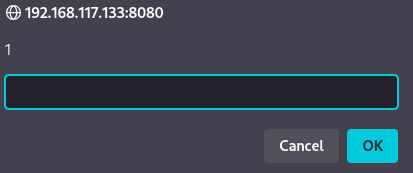
The JavaScript is executed every time some user visits the library overview.
If the Multimedia library application is not available install it using below.
Create workspace and add application #
Login as an administrator and click on the menu item Back office. Within the backoffice select Workspace & applications and Create a space.

Fill in a random name for the workspace and click OK. To the right on the screen, select within the dropdown menu Add an application and select Content Management / Multimedia library, give the application a name (ex. mmlibrary) and select OK.
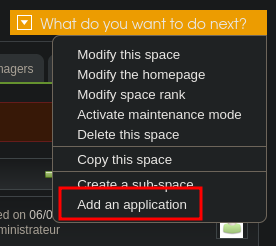
Once the application is created, add a user to one of the following roles (Managers/Publishers/Contributors/Reader with priviledge or Readers) by clicking on the tab, and selecting Edit to add a user in a specific role.

Once a user is added to the application in the created space, login as that user.